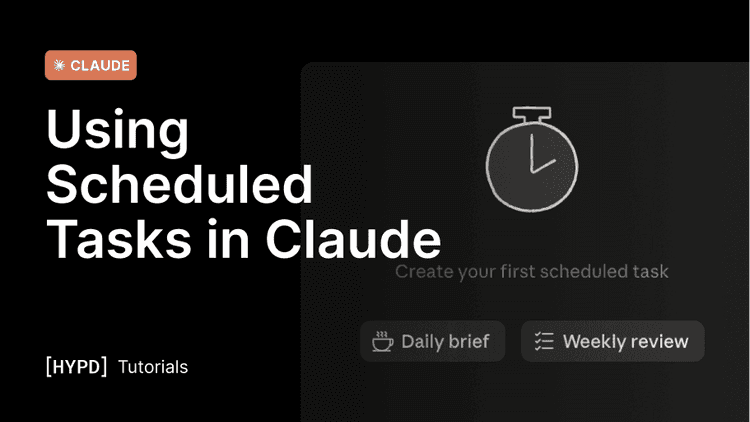
Scheduled tasks are simply prompts that run automatically on a schedule you set daily, weekly, monthly, or once at a future time.
Scheduled tasks are simply prompts that run automatically on a schedule you set — daily, weekly, monthly, or once at a future time.
What you can do with scheduled tasks
A few common use cases:
- Create alerts — flag when something crosses a threshold, like conversions dropping to 0, a sudden traffic drop, budget overpacing, or new disapprovals.
- Alert only when it matters — e.g. only message you when a metric crosses a threshold.
- Create reports — recurring performance reports, client-ready summaries, or end-of-month roundups.
- Prepare ad-ops tasks — search query add/negate lists, placement exclusions, or keyword suggestions, ready to action.
What the result can be:
- Create a file in your project — ideal for regular reports, ad-ops tasks, or client briefs.
- Post to Slack or Teams — connect the channel and get the update where your team works.
- Email — note that the Gmail connector can only create drafts, not send, so Slack or Teams is the better choice for notifications.
How to set one up in a project
You set them up from inside a project, so they automatically inherit all of that project's context — which ad account, client context, and instructions — and run exactly as if you'd typed the prompt yourself.
1. Open the relevant project. 2. Describe the task (basically a prompt). 3. Set the cadence in plain language. 4. Define the format (Excel, PowerPoint, text summary). 5. (Optional) Where to be notified (Slack, etc.) — the default is in Claude.
Change the timing or instructions of any scheduled task anytime.
Scheduling tasks across accounts
You can also create scheduled tasks that run analysis or alerts across several ad accounts. You have two options:
- Create a scheduled task directly from the Cowork sidebar, and include the ad accounts you want to analyze as part of the prompt.
- Or create a new project where you add several account IDs and specify that it should analyze multiple ad accounts.
What's important to know
- Scheduled tasks can use a lot of tokens. Each run is a full prompt, so be thoughtful about what you schedule and how often it runs — daily checks across many accounts add up quickly and can exhaust your limits.
- Tasks only run while Claude is open. Right now, scheduled tasks don't run in the background. They run while Claude is open, and a task scheduled for a time that has already passed runs the next time you open Claude. If Claude is closed and you're offline, nothing runs until you're back.
Sample prompts
Copy any of these into a project chat to set up the task. Swap in your own accounts, thresholds, and timing.
See the next article, Using Live Dashboards in Claude, to learn how to create "datastudio style" dashboards with time pickers and campaign selectors.